

Configuration Section
Interfaces
In this section, you can view network statistics and change the network settings for the device.
Statistics
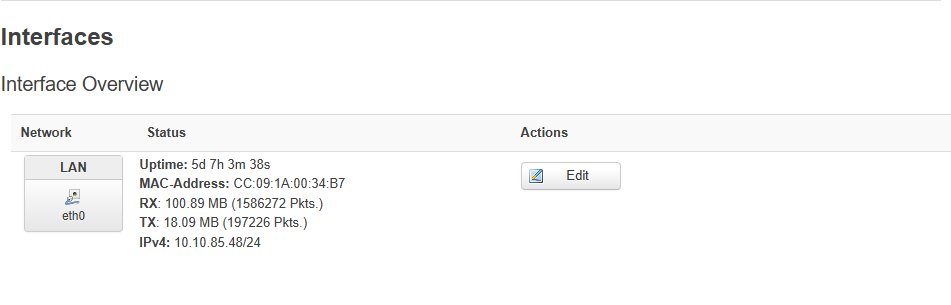
- Uptime — the uptime of the current connection to the router.
- MAC-Address — the device's MAC address.
- RX — the amount of data received from the network (the number of packets is shown in parentheses).
- TX — the amount of data transmitted to the network (the number of packets is shown in parentheses).
- IPv4 — the device's IP address on the local network.
Network Settings
To configure a static address, perform the following steps in order:
- Click the Edit button next to the LAN interface.
- On the page that opens, select Static Address in the Protocol field.
- Click the Switch Protocol button.
Next, you need to specify the settings for the static IP address in the fields:
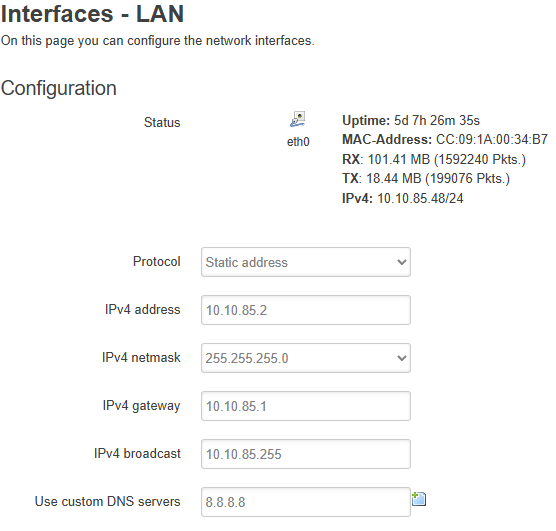
- IPv4 address — the IP address of your ASIC miner on the local network.
- IPv4 netmask — the subnet mask in which the IP address specified above should reside.
- IPv4 gateway — the gateway IP address. This is usually the first IP address in the range.
- IPv4 broadcast — the broadcast IP address. This is usually the last IP address in the range.
- Use custom DNS servers — DNS server IP addresses.
Miner Configuration
This subsection contains all the mining settings for the device.
Pool Tab
On this tab, you can specify connection details for pools. Up to 3 pools are supported.
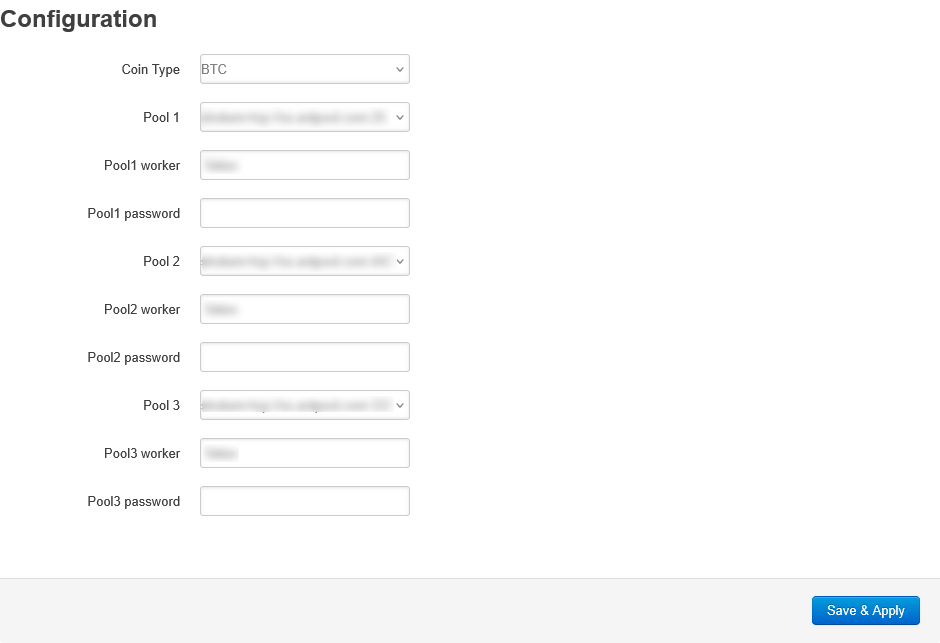
- Coin Type — any supported by your pool based on the SHA-256 algorithm.
- Pool 1/2/3 — the pool address. To specify your own pool, select the --custom-- option and enter the pool address in the same field.
- Pool 1/2/3 worker — the worker name for this pool.
- Pool 1/2/3 password — the password for the worker on this pool (optional, depending on the pool).
Overclock Tab
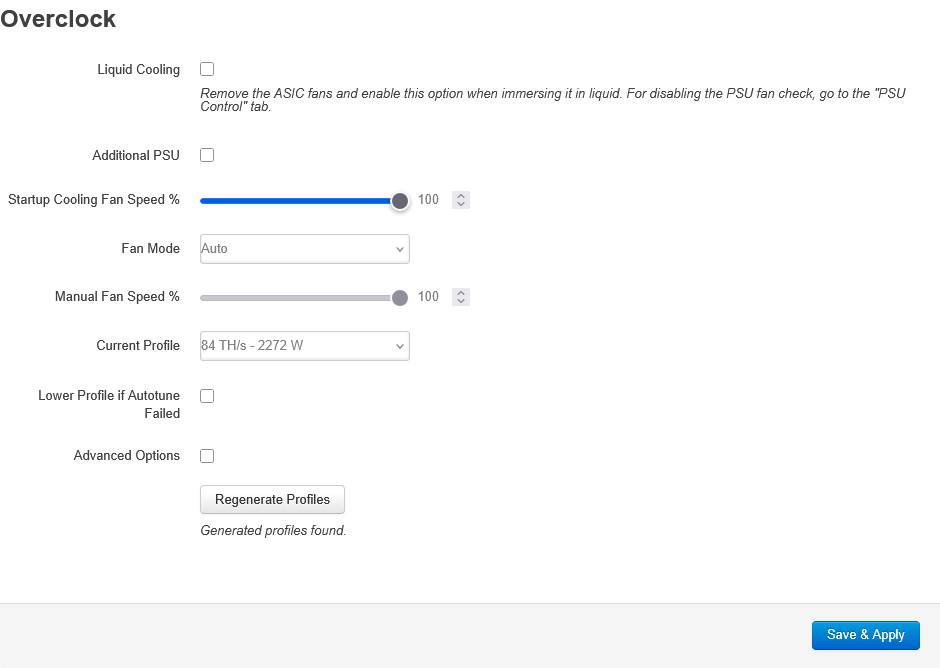
This tab contains various options intended for overclocking the device.
Liquid Cooling
This checkbox is designed to switch the device to immersion cooling mode. When this checkbox is activated, the device's fans are no longer checked by software. It is usually used in conjunction with [Disable Power Fan].
INFO
- When this mode is activated (in Miner Status → Summary), the Fan Speed parameter changes to Liquid Cooling.
- If you enable this mode and leave the fans on the device, they will spin, but the device will not be able to control their speed.
- This function can also be used for cooling the device with non-stock fans.
Additional PSU
This mode is intended for connecting an additional power supply to the device.
Startup Cooling Fan Speed %
This parameter is intended to set the fan speed (as a percentage) from the moment the purge ends (fan speed at 100%) to the moment the device starts operating. It determines the speed at which the device begins cooling. It does not disable the initial device purge — so it will still be noisy at startup.
Fan Mode
This function is intended to switch the fan operating mode. It has two states:
- [Auto] — fan speed will be determined automatically.
- [Manual] — the maximum fan speed will be limited by the [Manual Fan Speed] parameter.
Manual Fan Speed %
If manual cooling mode is set, this value acts as a limiter for the maximum fan power of the device.
If the device starts to overheat while operating in this mode, it will exit manual fan control and begin managing them automatically.
Current Profile
Selection of the overclocking profile for the device. The profile contains information on chip frequency, voltage, target temperatures, and power consumption limits for starting Autotune — the process of selecting optimal frequencies and voltages according to the target parameters and device operating conditions.
Lower Profile if Autotune Failed
When this option is activated, if the device fails to complete Autotune on the selected profile, it will automatically lower the profile and start the Autotune process on it.
Advanced Options
Manual overclocking settings menu for experienced users. In most cases, it is recommended to use the generated overclocking profiles.
INFO
The values displayed in the fields of this section depend on the selected generated profile and are automatically updated when it is changed. If you manually change these values, they will take priority over the parameters of the previously selected profile. Therefore, to avoid accidentally applying manually entered data when overclocking the device, it is recommended to re-select the desired overclocking profile and uncheck the Advanced options checkbox.
- Target Frequency: The target average chip frequency on the boards that the miner will aim for during autotuning.
- Target Voltage: The target voltage applied to the boards that the miner aims for during autotuning.
- Minimum Voltage: The minimum voltage that the miner will apply to the boards during autotuning.
- Maximum Voltage: The maximum voltage that the miner will apply to the boards during autotuning.
- Target Board Temp: Not recommended to change. The board temperature that the miner aims for during autotuning and operation. If the temperature cannot be maintained at the specified value, the miner will allow deviation up to the maximum possible (85), after which it will reduce the chip operating frequency and, consequently, the hashrate.
- Chip Ok Percent: Not recommended to change.
- PSU Power Limit: The power consumption in watts that the miner will aim for. It may exceed the specified value during operation, but not more than PSU Power Max. The recommended value is 100-200 Watts less than PSU Power Max, but not more than 3800-3900 W.
- PSU Power Max: The maximum permissible power consumption. If this value is exceeded, the miner will throw an error. The recommended value is no more than the rated power of the miner's power supply. Typically, this is 3900-4000 W.
- PSU Power Rate: Not recommended to change.
In the columns on the right, you can see hints for the selected profile in the form of: Default — default value, Min — minimum possible, and Max — maximum possible value for the field.
During the overclocking process, it is necessary to monitor the chip temperature (not to be confused with the board temperature, which is displayed in the web interface in the ChipTemp column).
This temperature can be seen in the ChipTemp column of the WhatsMinerTool utility:
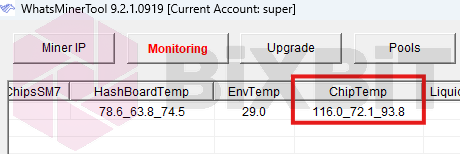
In the utility settings, you must first set the List Column Display Mode parameter to "Complete Mode"; otherwise, the ChipTemp column will not be displayed.
Decoding the value of the string "116.0_72.1_93.8": maximum (116.0), minimum (72.1), and average (93.8) chip temperature of the miner.
WARNING
The manufacturer's permissible operating temperature limit for chips varies for different miner models. If exceeded, the miner reduces the chip frequency. Even though the temperature is considered acceptable, it is not recommended to operate the miner under such conditions to avoid malfunctions.
INFO
The Restart As Hashrate Error error occurs on M2X series devices and is fixed by entering the value indicated in parentheses of the same error in Minimum Voltage in System.log (expect vol:…). In such cases, it is also necessary to raise Target and Maximum Voltage by 50 and 100 from Minimum, respectively.
Generate Profiles/Stop profiles generation/Regenerate Profiles
This button has 3 states:
- Generate Profiles — this button is displayed by default. When clicked, the profile generation process begins; the list of profiles and the active profile can be seen in the [Current profile] field.
- Regenerate Profiles — this button is displayed if the profile generation process completed successfully. When clicked, the profile generation process starts anew.
- Stop profiles generation — this button is displayed if the profile generation process has not finished. When clicked, the profile generation process stops.
Delete Autotune Results
Deletes the autotune results. (This button may be absent if the device has never completed a tune.)
Profile Switcher Tab
Profile Switcher is a function for automatically changing profiles when specified chip temperatures are reached. To use this function, you specify the values at which the profile will be switched, either up or down. In Maximum Profile, you specify the maximum profile above which the device will not raise the overclocking profile. Each time the profile is switched, the device will reboot and run Autotune on the new profile.
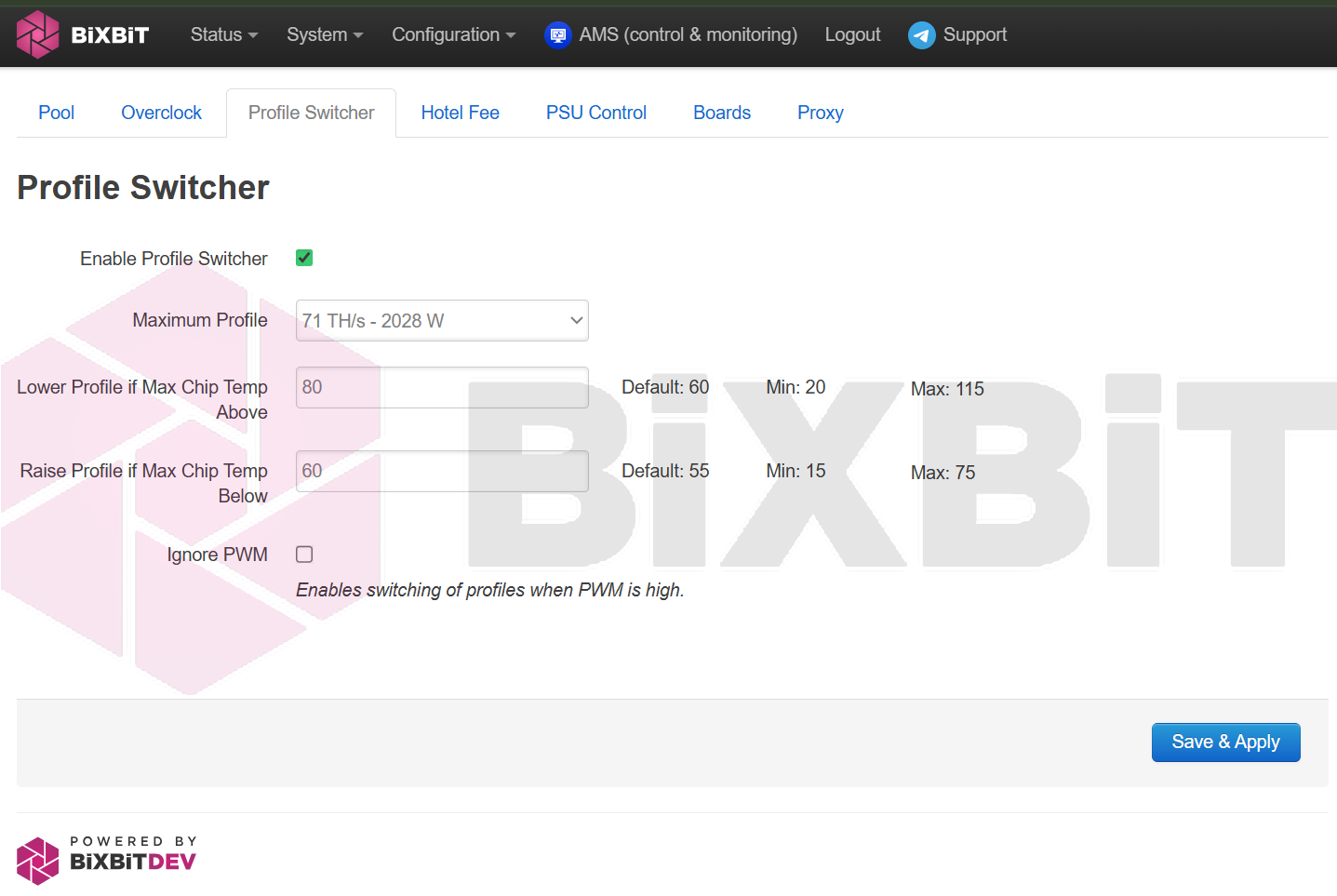
- Enable Profile Switcher — checkbox to enable/disable the Profile Switcher option.
- Maximum Profile — the maximum profile to which the device can switch.
- Lower Profile if Max Chip Temp Above — the temperature for lowering the profile. When one of the chips reaches this temperature, the device will lower the profile to the previous one.
- Raise Profile if Max Chip Temp Below — the temperature for raising the profile. When the hottest chips cool down to this temperature, the device will raise the profile to the next one.
- Ignore PWM — ignore fan RPM. If the temperature conditions are suitable for raising the profile, the device will do so even at high fan speeds.
Hotel Fee Tab
This function allows specifying a pool and percentage for additional deductions. When enabled, the specified percentage of hashrate will go to the address specified on this tab.
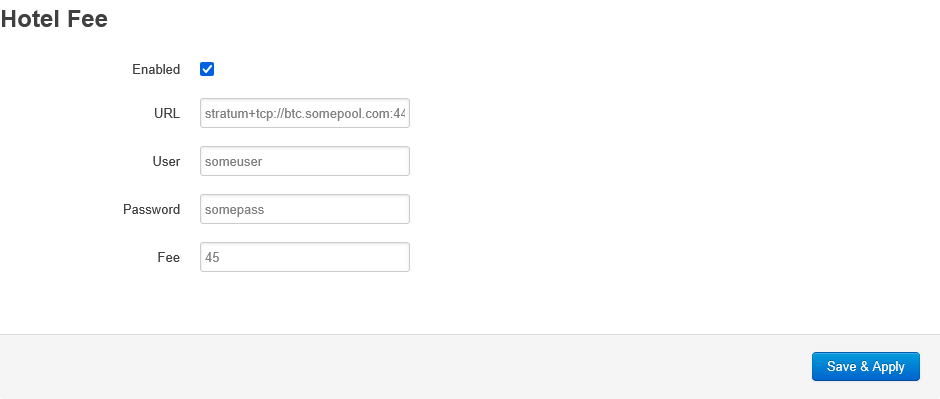
Example: in the screenshot above, the function is enabled, the pool connection details are set, and the deduction percentage is 45%. This means that the device's hashrate will be split between two pools as follows: 45% will go to the Hotel Fee pool, and 55% (100% - 45%) will go to the main pools specified on the Configuration - Miner Configuration - Pool tab.
- Enabled — enables/disables the function.
- URL — the pool address, specified together with the scheme (in this case "stratum+tcp://") and port (in this case "443").
- User — the worker name on the pool.
- Password — the worker password (optional).
- Fee — the percentage of deductions to this pool. Can be from 0.1% to 50%.
PSU Control Tab
On this tab, you can flash the power supply firmware and disable the power supply fan checks for immersion cooling purposes.
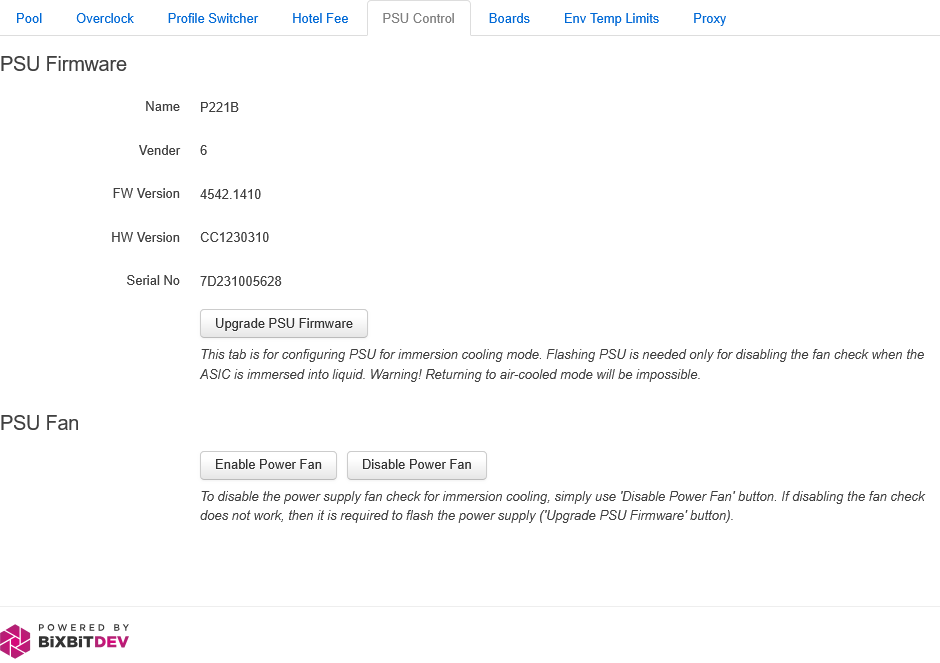
More details can be found here.
Boards Tab
On this tab, you can disable hashboard slots on the device. It displays the number of slots, the reason for their disablement if any, as well as auto-shutdown options for boards on errors.
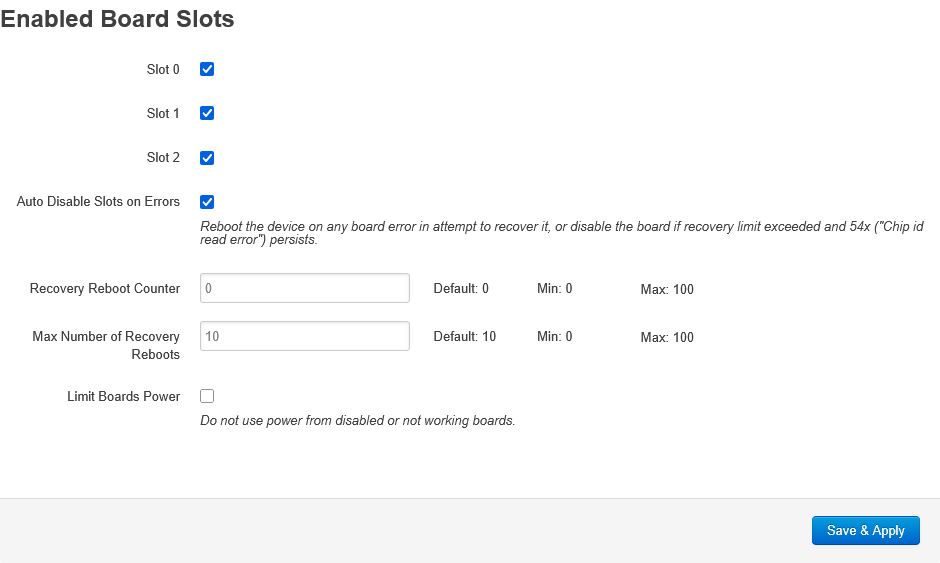
- Auto Disable Slots on Errors — intended for automatically disabling boards. If a board fails to start after exceeding the startup attempt limit (the device reboots the number of times set in Max Number of Recovery Reboots. If the board does not start, it is disabled).
- Recovery Reboot Counter — a counter for the number of device reboots related to board errors.
- Max Number of Recovery Reboots — the number of device reboots related to board errors, after which the problematic board will be software-disabled.
- Limit Boards Power — disables the use of power from disabled/non-working boards.
Env Temp Limits Tab
This function is used to manage device operation depending on the ambient temperature.
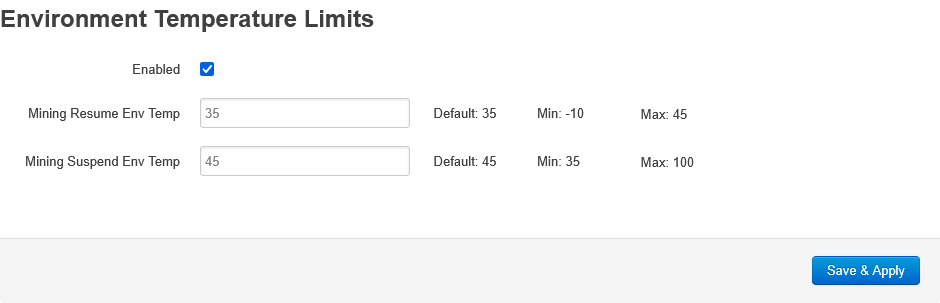
- Mining Resume Env Temp — this field indicates the ambient temperature at which the device will exit the "Suspended: High Env. Temp" mode.
- Mining Suspend Env Temp — this field indicates the ambient temperature at which the device enters Suspended mode. The status will then display "Suspended: High Env. Temp".
Cool Temp Tab
The Cool Temp setting determines to what temperature the boards will be cooled during miner startup. All temperatures are in degrees Celsius. The specific value depends on the mode selected in the Cool Temp Mode field.
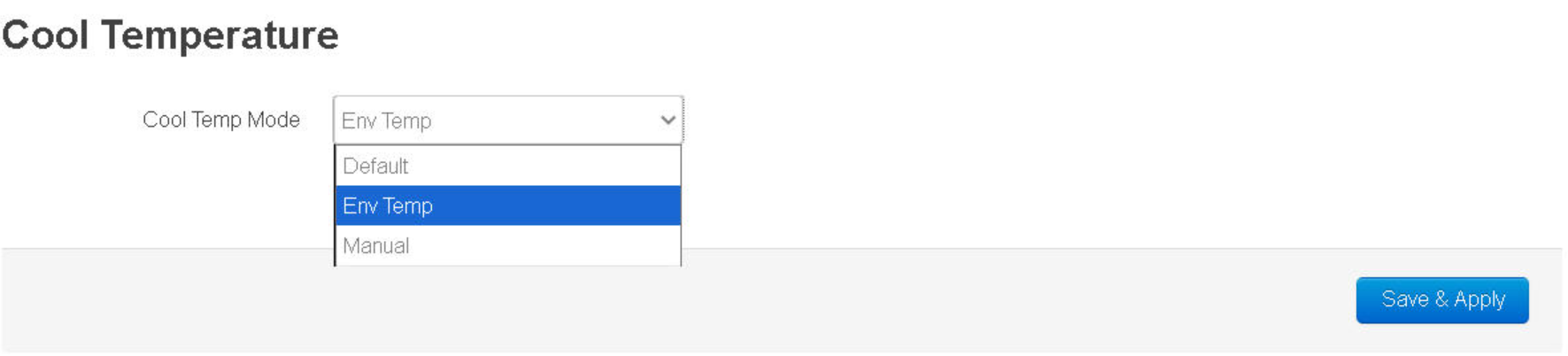
- Default — uses the default temperature value (similar to the stock firmware).
- Manual — the temperature value is set manually.
- Env Temp — uses the temperature value from the ambient temperature sensor.
Proxy Tab
This function allows using an intermediate proxy server through which mining traffic will be routed.
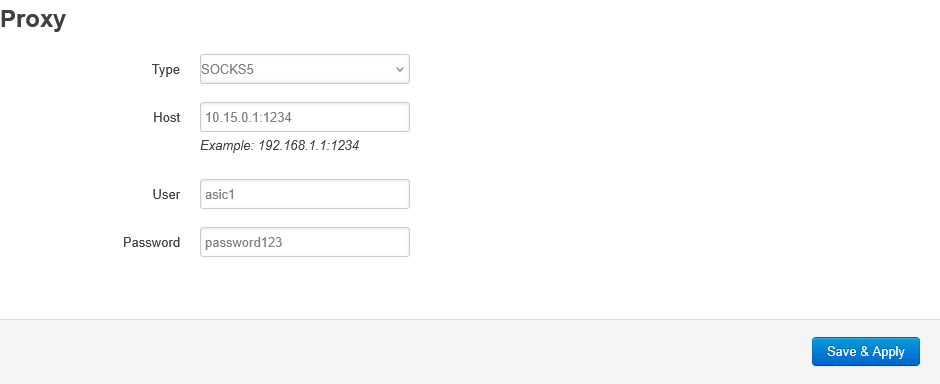
- Type — selects the proxy server type. Currently, only SOCKS5 is supported.
- Host — proxy server address and port.
- User — username for authorization on the proxy server.
- Password — password for authorization on the proxy server.