

Log Export
If your device experiences crashes or errors, you can export its logs to analyze the device's behavior and determine the causes of these errors.
Antminer
Via the Device's Web Interface on BiXBiT Firmware
- Go to the Miner Log section.
- Open the Download tab.
- Select the dates for which you want to download logs.
- Choose a folder on your computer to save the logs.
Whatsminer
Using WhatsminerTool
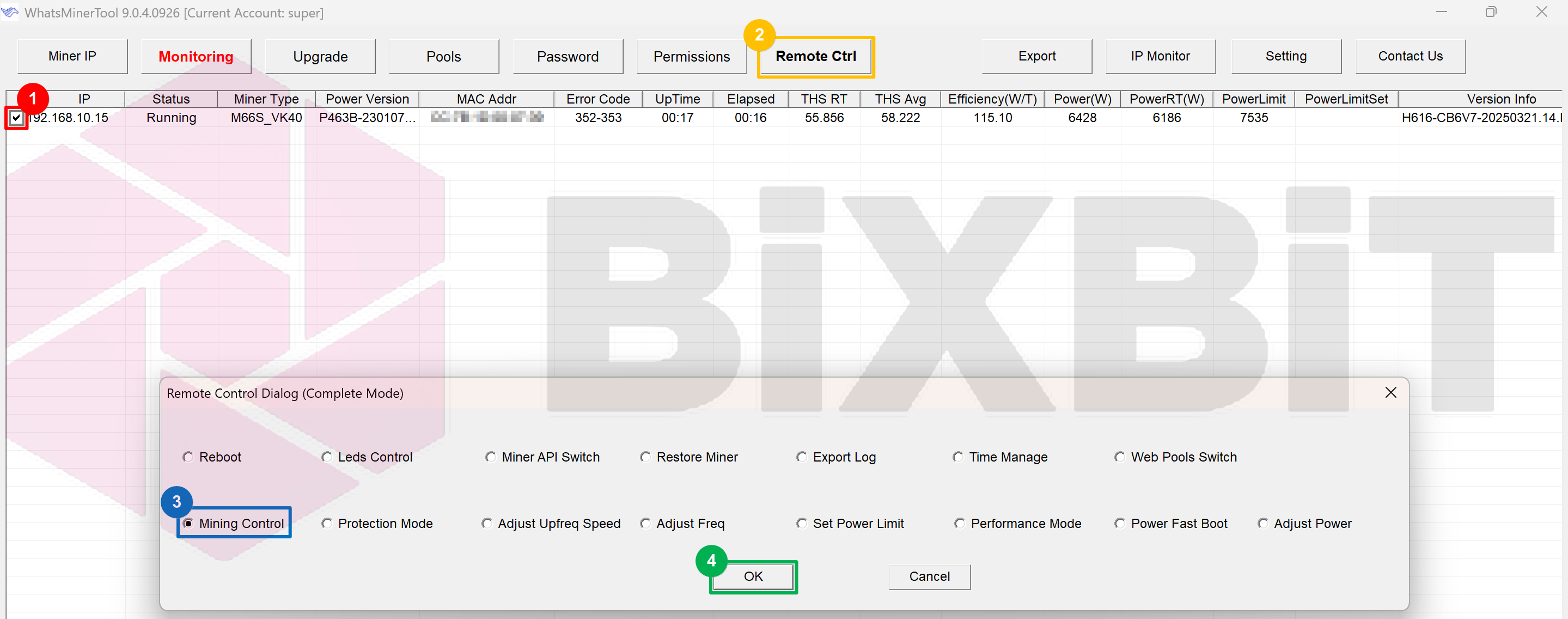
- Step 1: Select the IP address of the device whose operation logs you want to export. You can select multiple devices.
- Step 2: Go to [Remote Ctrl].
- Step 3: Select [Export Log].
- Step 4: Confirm by clicking [OK].
- Step 5: In the dialog box that opens, select the directory where you want to save the logs.
- Step 6: Click [OK] to start the log export process.
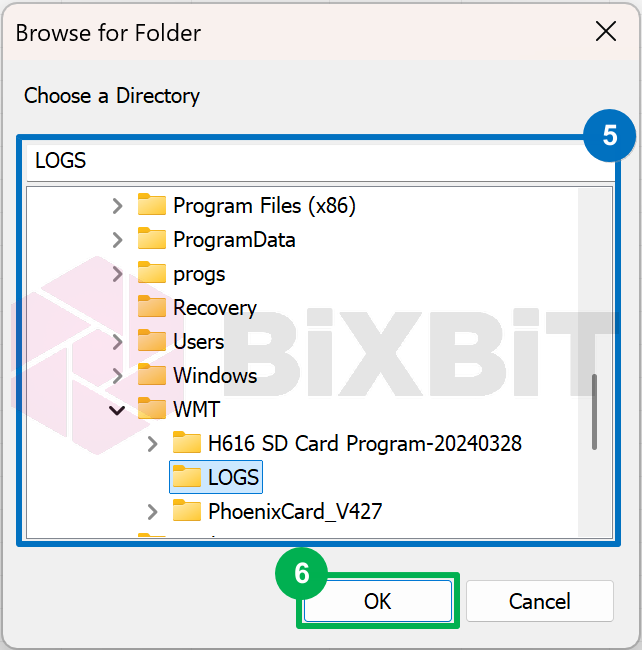
During the export, the [Remote Ctrl] button will be renamed to [Stop]. You can click it if you want to interrupt the log export process.
After a while, a file(s) named like "192.168.88.79.20220628161335.tgz" will appear in the folder you selected earlier.
Via the Device's Web Interface on BiXBiT Firmware
- Open the device's web interface.
- Go to the Status -> Miner Status section.
- Click the Download Logs button.
- Wait for the "Preparing logs" process to finish (from 20 seconds to 2 minutes).
- Select a folder to save the file.
The file will be named like "M60_VK20_2026-08-14_18-18.tgz".