

Preparing for Immersion Cooling
Whatsminer ASIC
Preparing the Device for Immersion
- Flash your device with BiXBiT firmware corresponding to your device model.
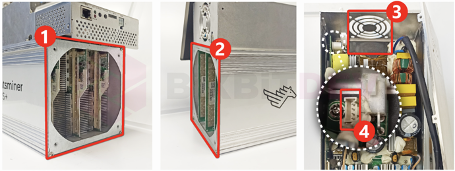
- Disconnect and remove the main fans from the device ①,②.
- Open the power supply cover and remove its fan ③.
- Clean the device casing and boards from dust and dirt.
- Submerge the device in the immersion fluid.
Disabling Main Fan Checks on the Device
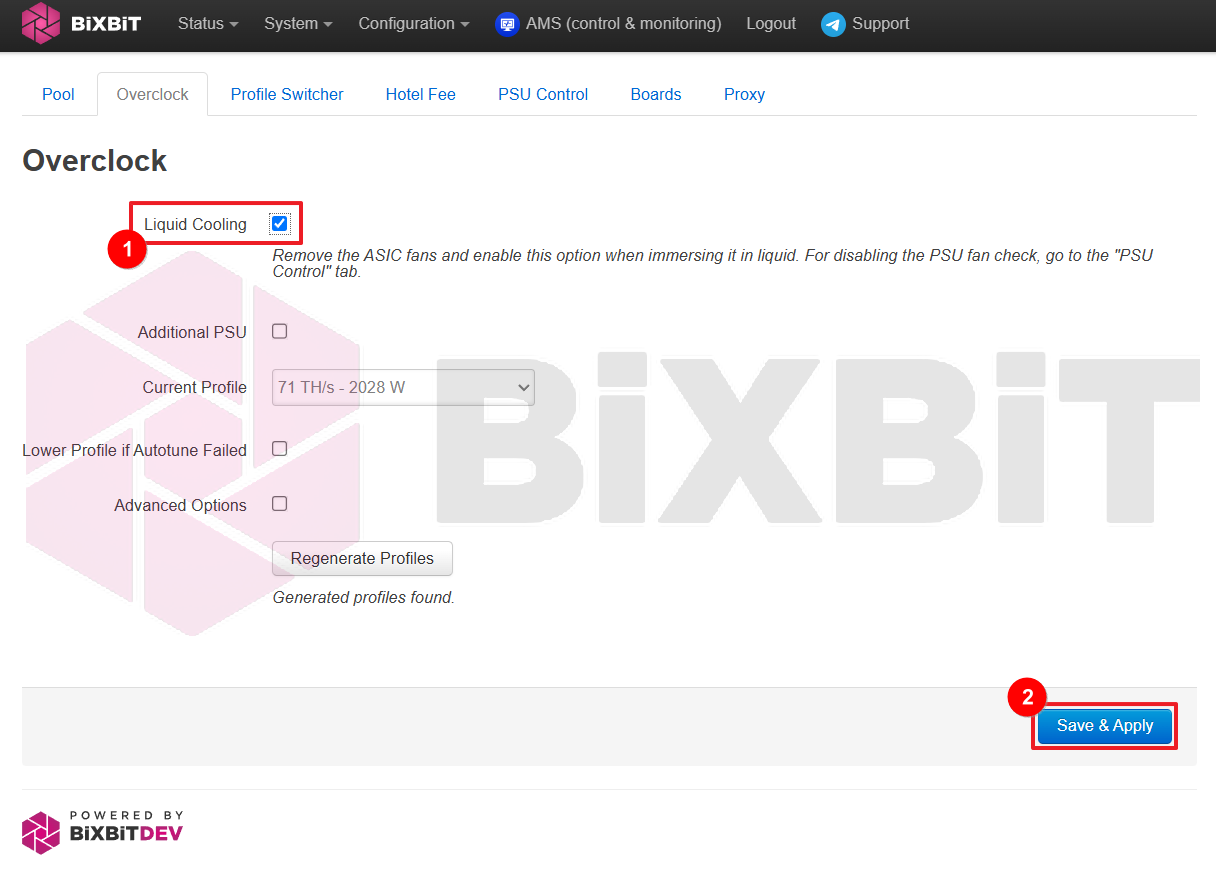
To disable the fan checks on the device itself, navigate to Configuration > Miner Configuration in the web interface, and select the Overclock tab.
- Activate the [Liquid Cooling] ① checkbox.
- Save and apply the settings by clicking [Save & Apply] ②.
Disabling Power Supply Fan Checks
Disabling PSU Fan Checks for M3X, M5X, M6X, and M7X Series Devices
| Device Series | Methods for Disabling Power Supply Fans |
|---|---|
| M3X, M5X, M6X | Use the Disable Power Fan function |
| M2X (M3X, M5X, M6X if Disable Power Fan fails) | Update the PSU firmware automatically using the Upgrade PSU Firmware function |
| Update the PSU firmware automatically or manually using the Air To Liquid Tool utility | |
| Use a fan emulator (dummy plug) |
WARNING
Disabling power supply fan checks is done exclusively for immersion cooling purposes.
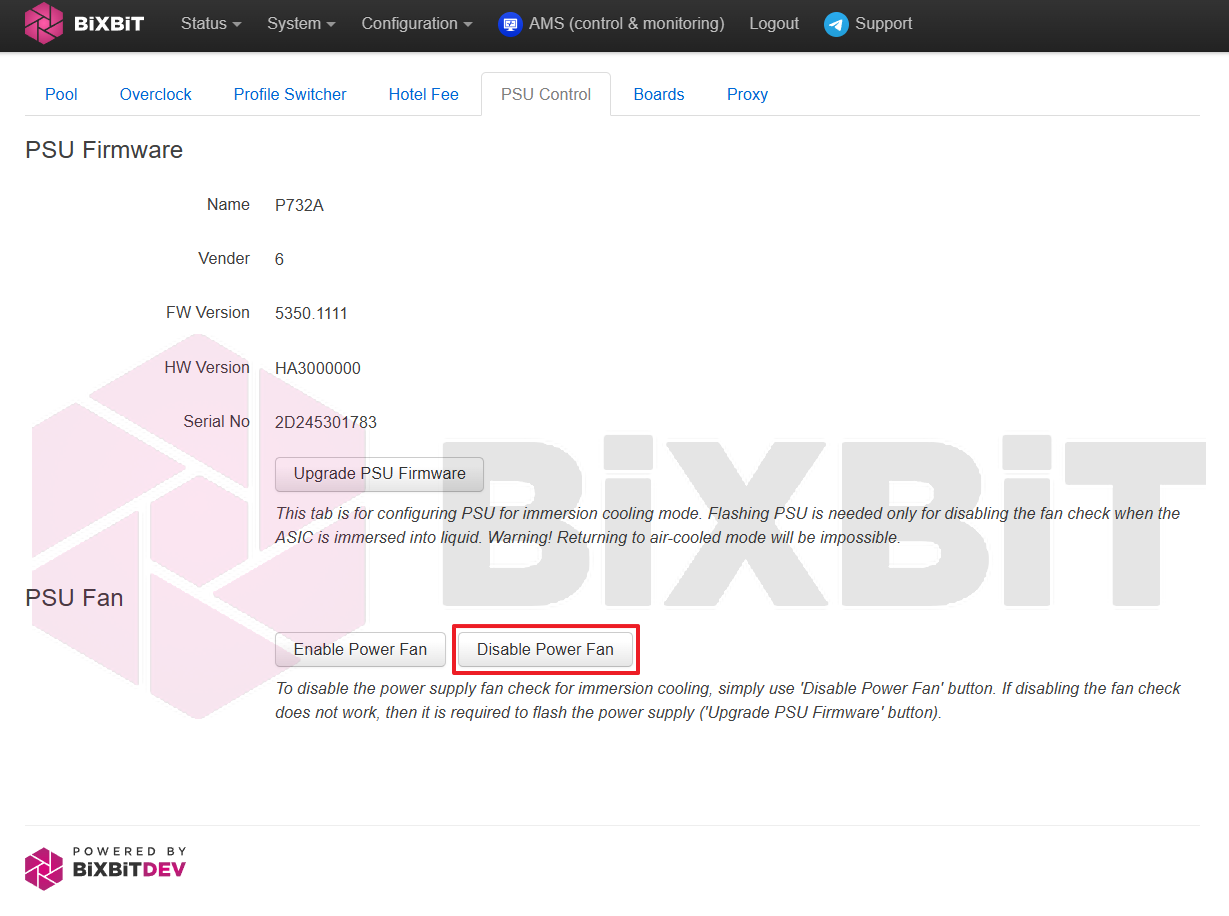
- Open the device's web interface.
- Go to Configuration > Miner Configuration.
- Select the PSU Firmware tab.
- To disable the PSU fan check, click the [Disable Power Fan] button.
WARNING
The device should restart automatically. If it does not, perform a Reboot of the device.
Disabling PSU Fan Checks for M2X Series Miners
WARNING
The miner's power supply is flashed exclusively for immersion cooling purposes and to disable the PSU fan check. The PSU flashing process is irreversible, and the power supply can only be returned to "air" mode via a service center.
WARNING
This method is recommended only for M2X series devices, as the Disable Power Fan function does not work on this series. For newer devices, it is recommended to use the Disable Power Fan function. Only flash the PSU if errors occur when applying it.
Option 1: Automatic PSU Firmware Update via the Device's Web Interface
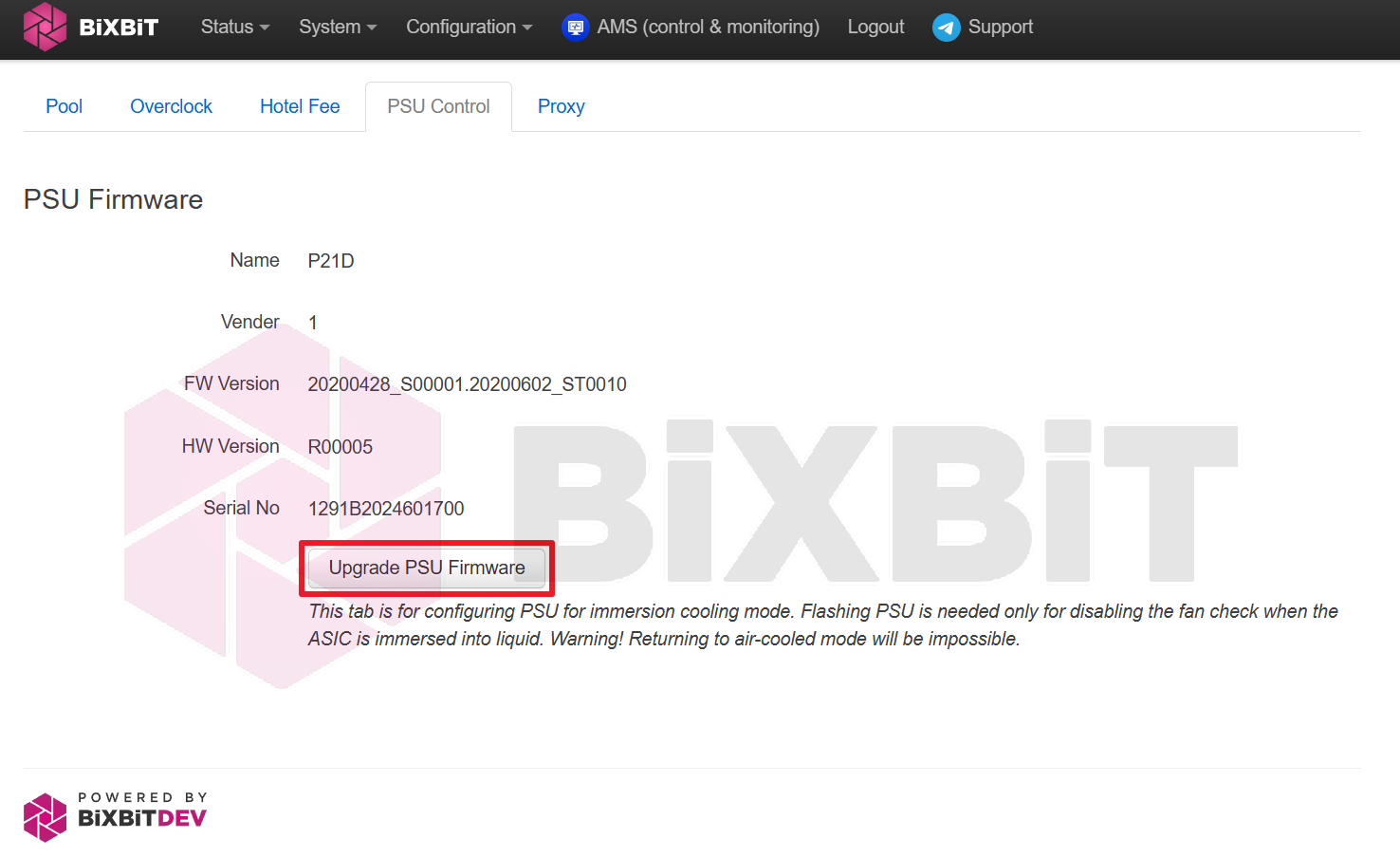
Open the device's web interface.
- Go to Configuration > CGMiner Configuration.
- Select the PSU Control tab.
- To automatically update the PSU firmware, click the [Upgrade PSU Firmware] button.
Option 2: Updating PSU Firmware Using the Air To Liquid Tool Utility
- Go to BiXBiT.
- In the page header, select the "Firmware" section, and in the "WhatsPower Firmware" subsection, click on the corresponding power supply model for your miner.
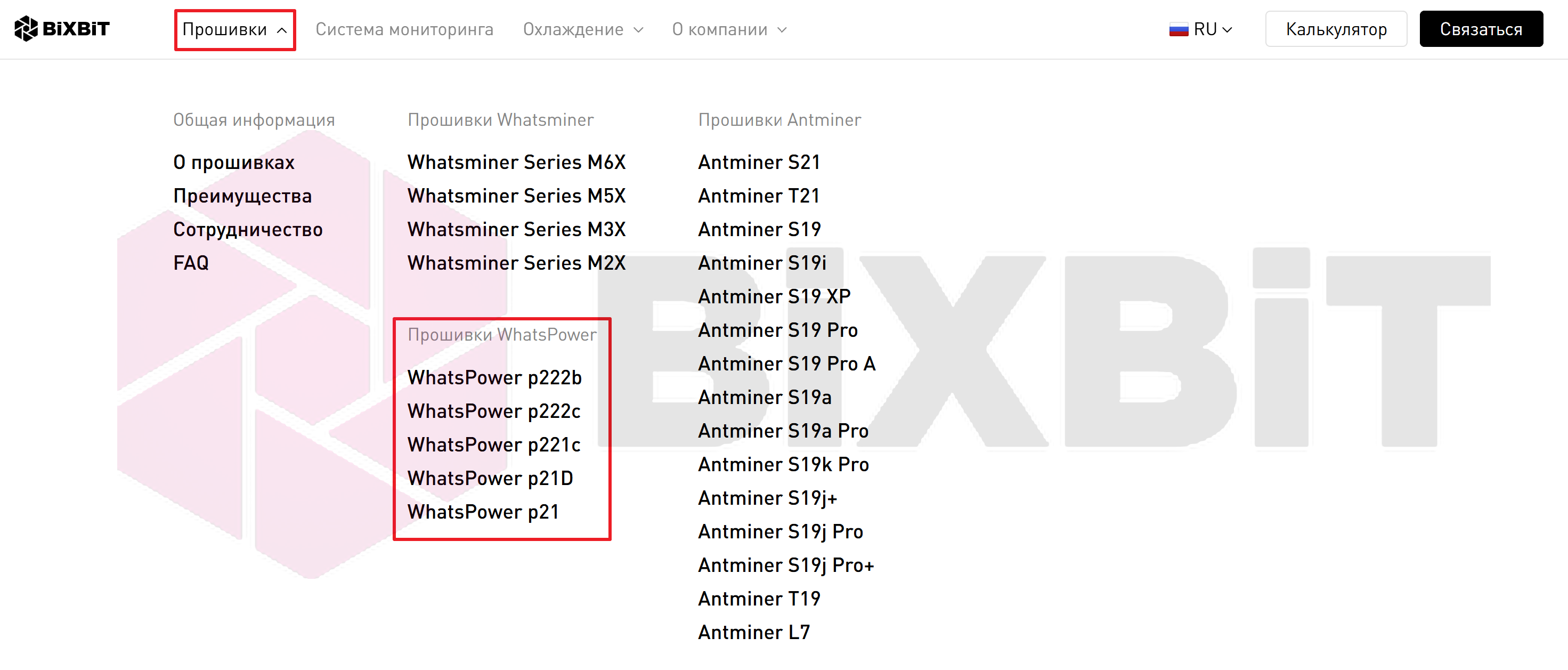
- The archive download will begin. Once the download is complete, extract the internal file with the .bin extension from the archive.
PSU Flashing Process:
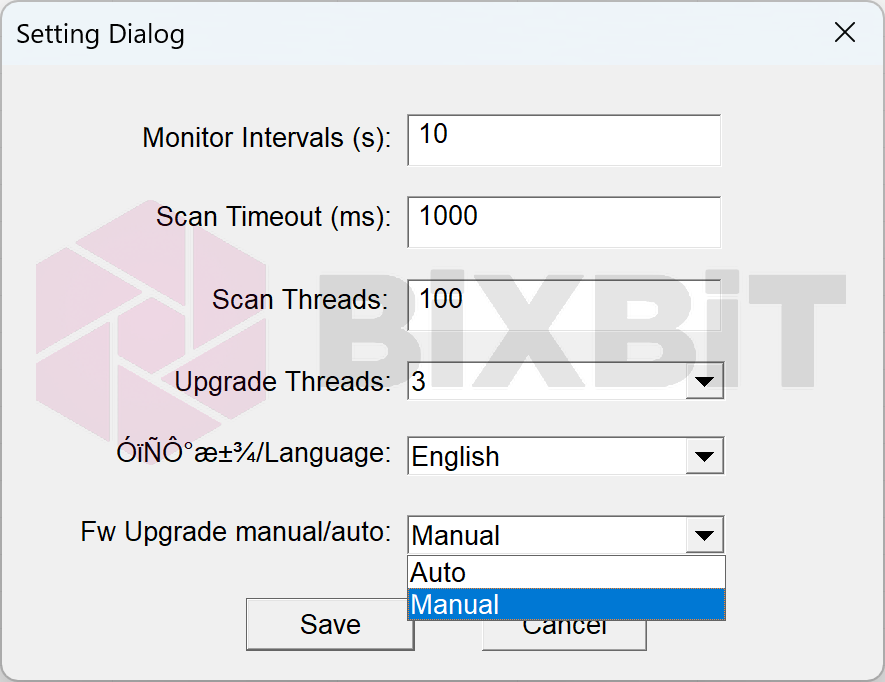
- Step 1. Run the AirToLiquidTool and click the [Setting] button.

- Step 2. In the Fw Upgrade manual/auto setting, select Manual. (If a file for your PSU model is not available, use auto mode.)
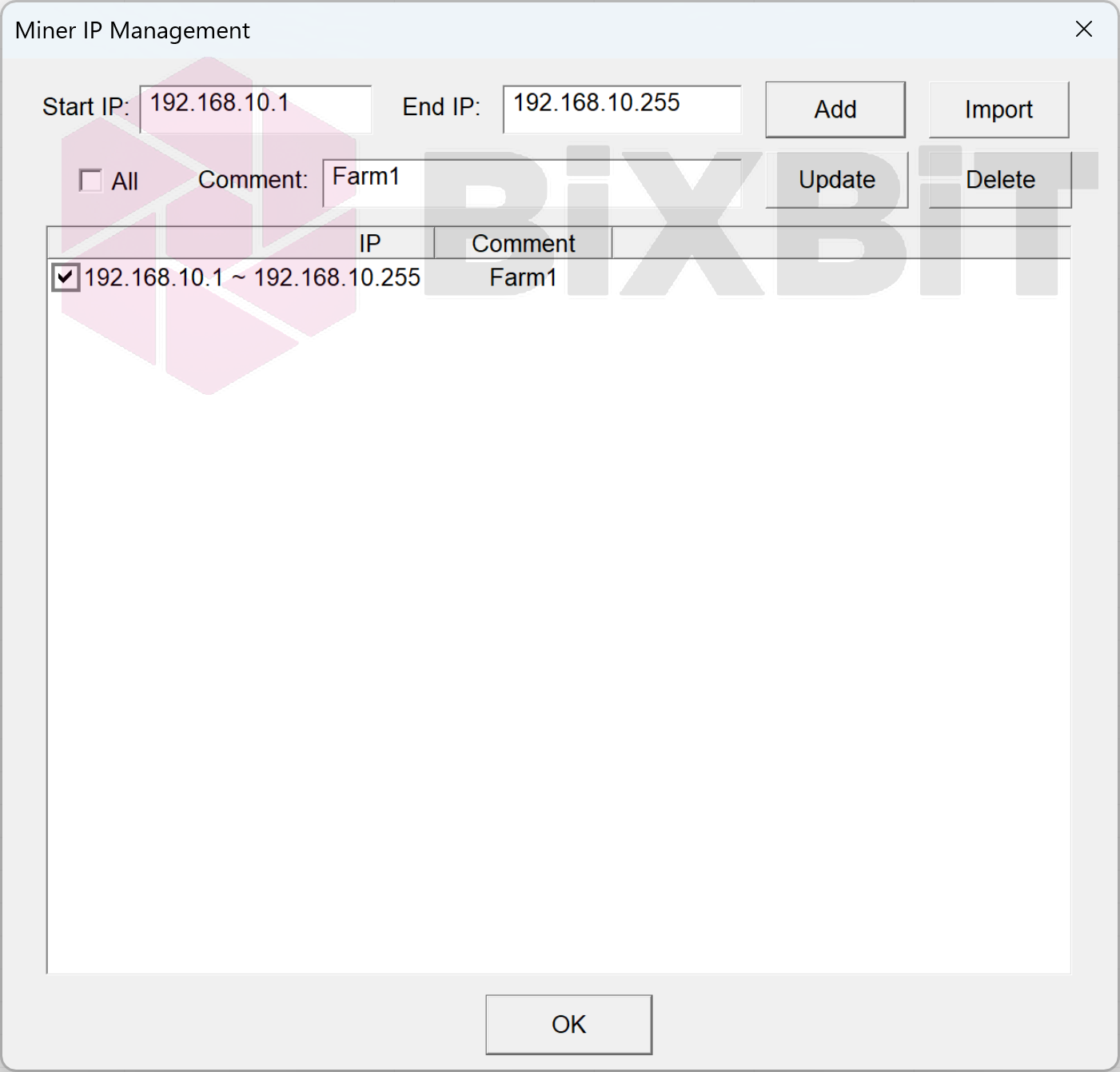
- Step 3. Click [Miner IP]. In the dialog that appears, add a scan range that includes the IP address of the device whose PSU you plan to flash. Select the added scan range and click [OK].
- Step 4. Start the scan by clicking the [Start] button.
- Step 5. Perform the following actions in order:
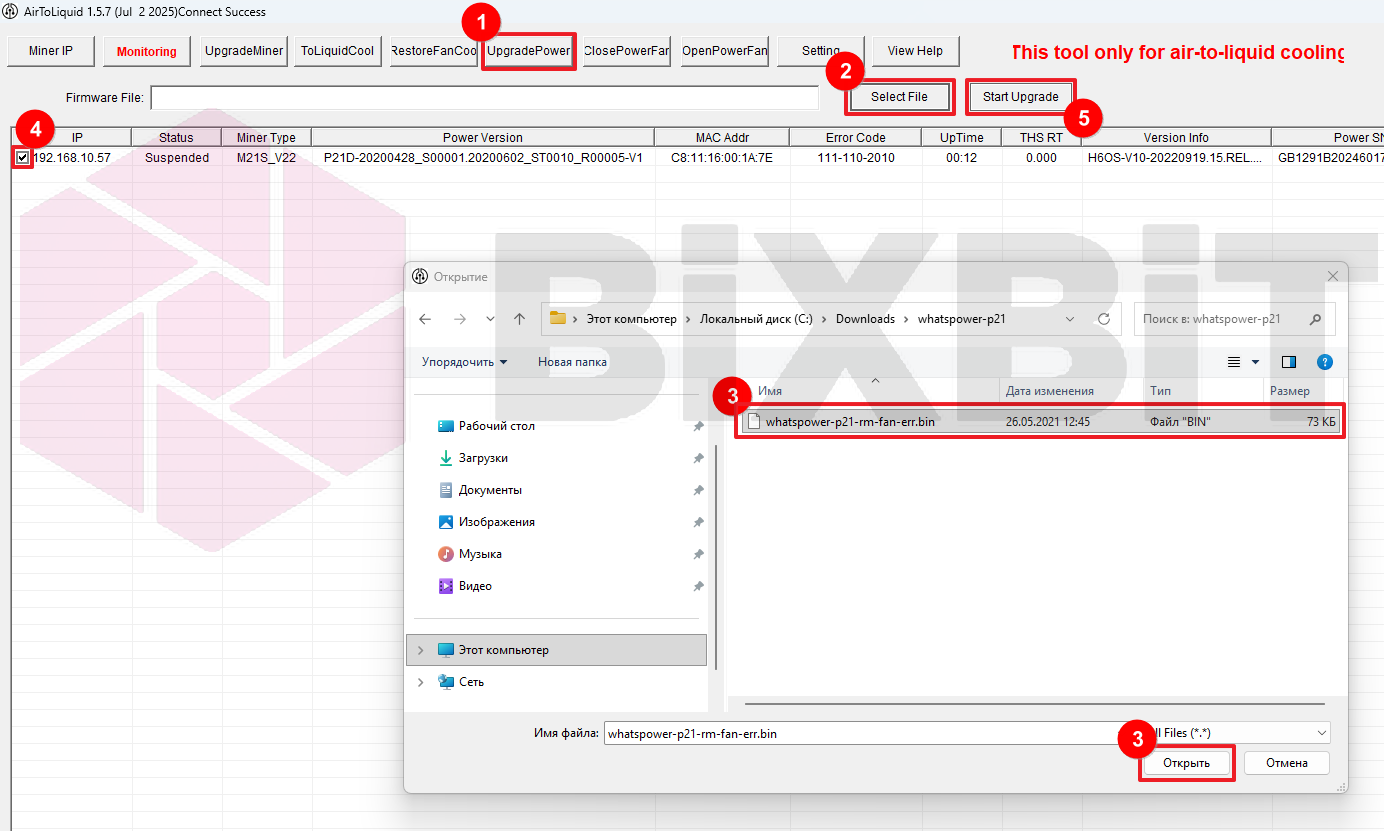
- ① Click [UpgradePower].
- ② In the menu that appears, click [Select File] (If Fw Upgrade is set to auto, file selection is not required).
- ③ Select the downloaded PSU firmware file and click [Open].
- ④ Check the checkbox for the device whose PSU you plan to flash.
- ⑤ Click the [StartUpgrade] button.
- Step 6. Confirm the start of the flashing process in the dialog box that appears by clicking [OK].
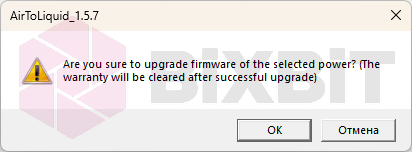
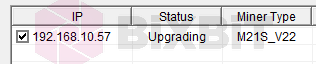
During the PSU flashing process, the Status column will display the current stage: Transfering, Upgrading.
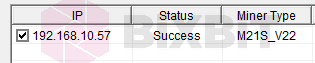
If the PSU flashing process completes successfully, the Status column will display Success.
INFO
If it is not possible to flash the PSU or disable the fan presence check function at the previous stages, you must install a fan emulator (dummy plug) into the corresponding connector for that fan.