

Settings Section
Setup Tab
On this tab, you can perform detailed firmware configuration based on the current state of the device. Also, below the Setup subsection is the Pools section, where you can set up mining pools.
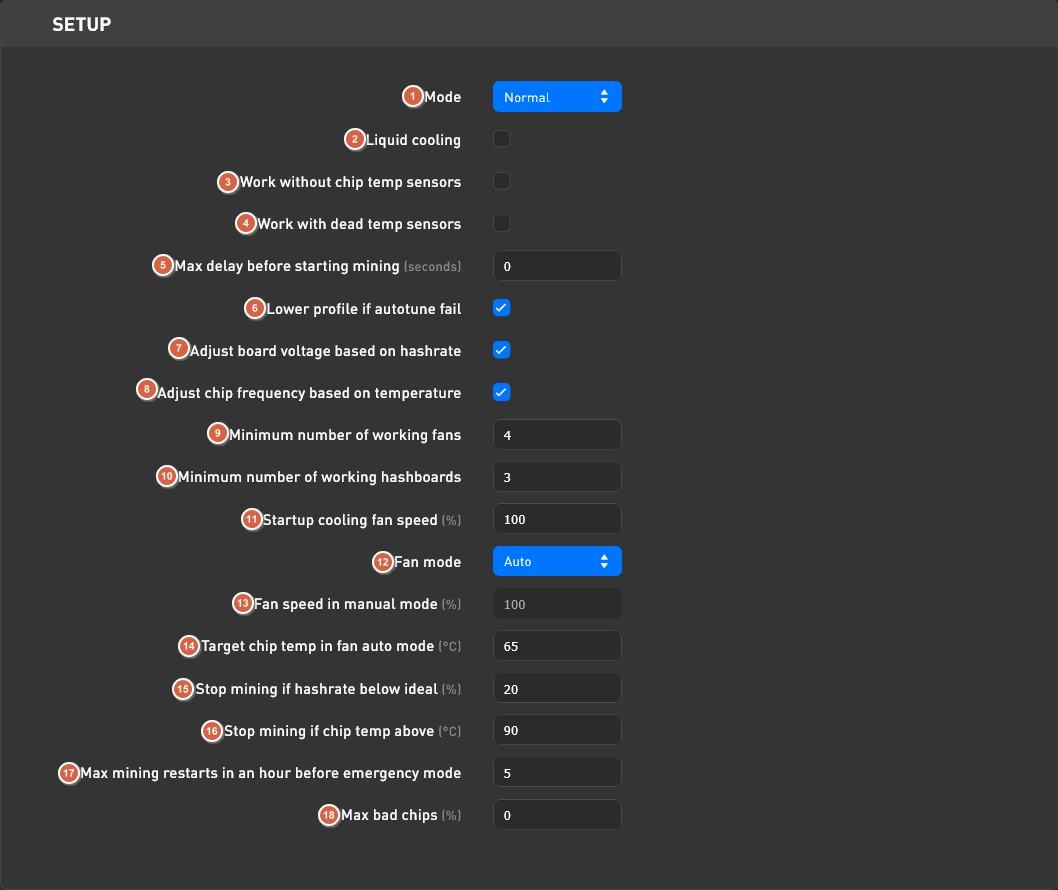
- Mode — selection of the device operating mode. Normal — normal device operation; Sleep — sleep mode.
- Liquid Cooling — a function that disables fan checks for subsequent immersion of the device in an immersion bath or use of a custom cooling system.
- Work without chip temp sensors — this function disables reading temperatures from sensors located on the chips. Temperatures from sensors not located on the chips are still read. This mode is quite dangerous because chip temperatures are the highest temperatures on the device, and the cooling system relies on the device's maximum temperature. Without chip temperatures, the device temperature will be "underestimated." Also, chips heat up the fastest. Ignoring chip sensor temperatures means the device will react more slowly to heating, which could lead to device damage.
- Work with dead temp sensors — this function allows the device to operate even if it has damaged temperature sensors. The device will ignore any number of damaged temperature sensors until one working sensor remains on the front of the board and one on the back of the board.
- Max delay on starting mining — a function that sets the maximum delay before mining starts. The mining process will start within a range from 0 to the value set in this field. This function is useful to minimize peak network load at device startup (for example, after a power outage for the entire farm at once).
- Lower profile if autotune fail — a function that lowers the profile if the autotune triggered by Profile Switcher ends unsuccessfully. If the option is disabled, this will block profile switching upward for Profile Switcher until the mining process is restarted.
- Adjust board voltage based on hashrate — a function that automatically adjusts voltage if the hashrate drops below that obtained during autotuning.
- Adjust chip frequency based on temperature — a function that automatically reduces chip frequency when temperatures approach maximum values.
- Minimum number of working fans — the minimum number of fans that must be detected for the device to continue operating.
- Minimum number of working hashboards — the minimum number of hashboards required for the device to operate. If a hashboard shuts down during device operation and the total number of working hashboards falls below this setting, the device will reboot.
- Startup cooling fan speed — the maximum fan speed at device startup.
- Fan mode — fan operating mode:
- Auto — automatic speed adjustment depending on the device temperature.
- Manual — manually set the fan speed percentage.
- Fan speed in manual mode — percentage of maximum fan speed in Fan mode: Manual.
- Target chip temp in fan auto mode — in Fan mode: Auto, the device will attempt to maintain the set temperature by adjusting fan speed.
- Stop mining if hashrate below ideal — stops the device if the hashrate falls below the ideal by the specified percentage.
- Stop mining if chip temp above — stops mining if the temperature exceeds the specified value.
- Max mining restarts in an hour before emergency mode — switches the device to Emergency mode if the device restarts mining the specified number of times within an hour. This function is not affected by restarts initiated manually by the user.
- Max bad chips — allows the device to continue operating with a specified percentage of faulty chips. This function is unsafe, as operating hashboards with non-working chips can be unstable and lead to further damage.
Pool Configuration:
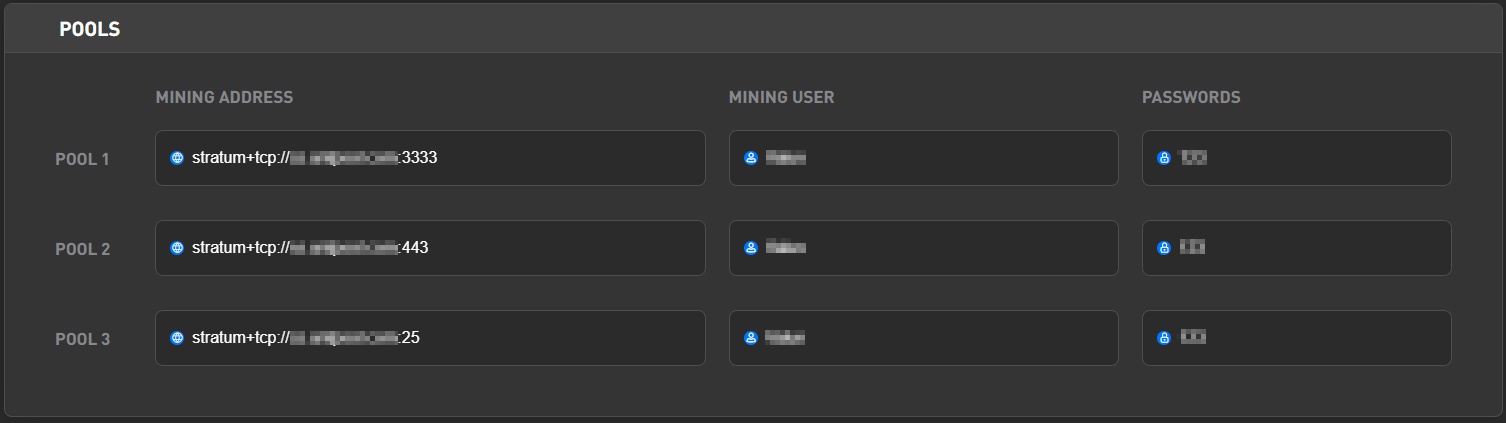
- Click on [Settings] on the left side of the web interface.
- On the [Setup] settings tab, in the POOLS section, enter the mining pool data in the corresponding fields: MINING ADDRESS — pool address/stratum, MINING USER — worker, PASSWORDS — password (optional).
- Click [Save] to apply the settings.
Autotune Tab
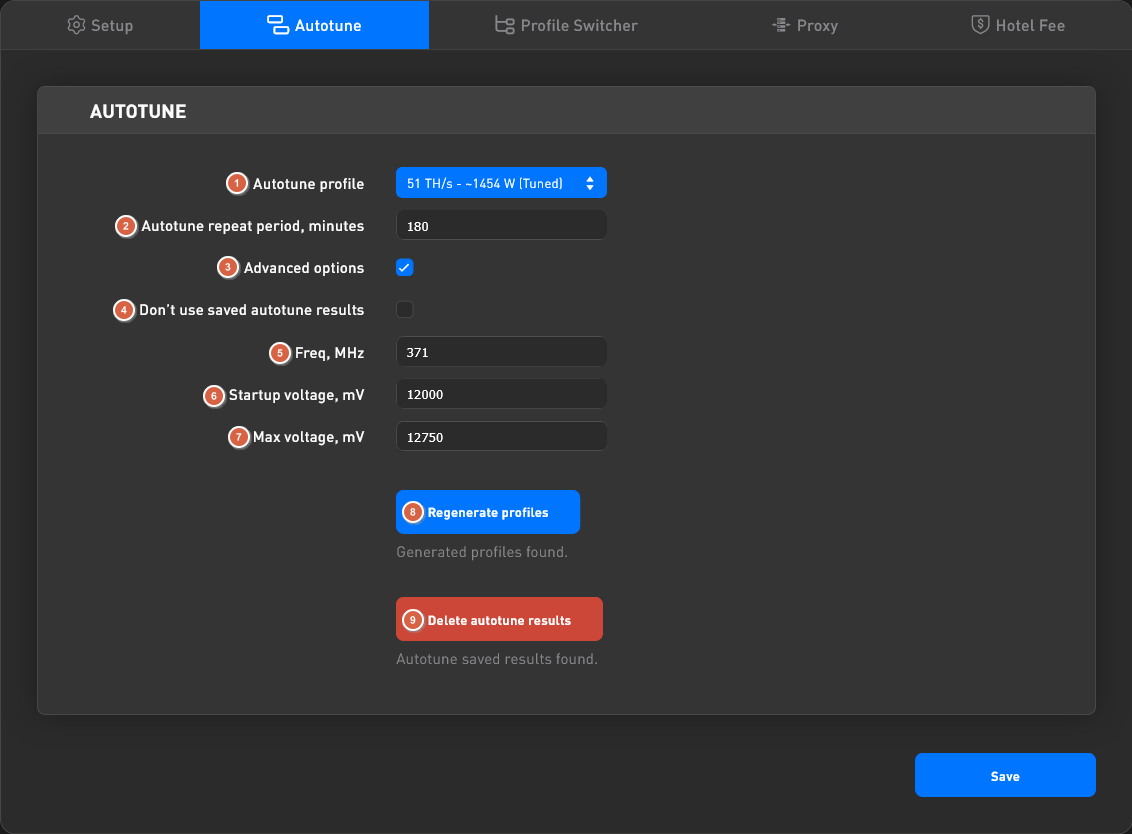
- Autotune profile — the boot profile and the profile for which autotuning will be performed, if necessary. Used for overclocking or undervolting the device.
- Autotune repeat period, minutes — sets how often autotuning is triggered in minutes after the last successful autotune completes.
- Advanced options — enables or disables advanced autotune settings.
- Don’t use saved Autotune results — allows ignoring the saved results of the last autotune. This means autotuning will start from scratch each time rather than using previously saved results.
- Freq, MHz — the starting chip frequency for the specified profile. From the start of autotuning, this frequency will be assigned to all chips. Depending on the progress of autotuning, it may be increased or decreased.
- Startup voltage, mV — the initial voltage applied to the board. Depending on the progress of autotuning, it may be increased or decreased.
- Max voltage, mV — the maximum voltage that can be applied to the board. If the device's autotune requires a higher voltage value, autotuning will end with an error.
- Generate\Regenerate Profiles; Stop Profile Generation — allows starting/restarting profile generation for the device, or stopping the current profile generation process.
- Delete autotune results — deletes saved autotune results.
- Fast Autotune — a function that speeds up the initial autotune several times. When using this function, the device does not mine to the pool during autotuning (i.e., hashrate during autotune will be zero). This function is not available for all devices.
Profile Switcher Tab
The Profile Switcher function allows changing the overclocking profile depending on changes in the device temperature.
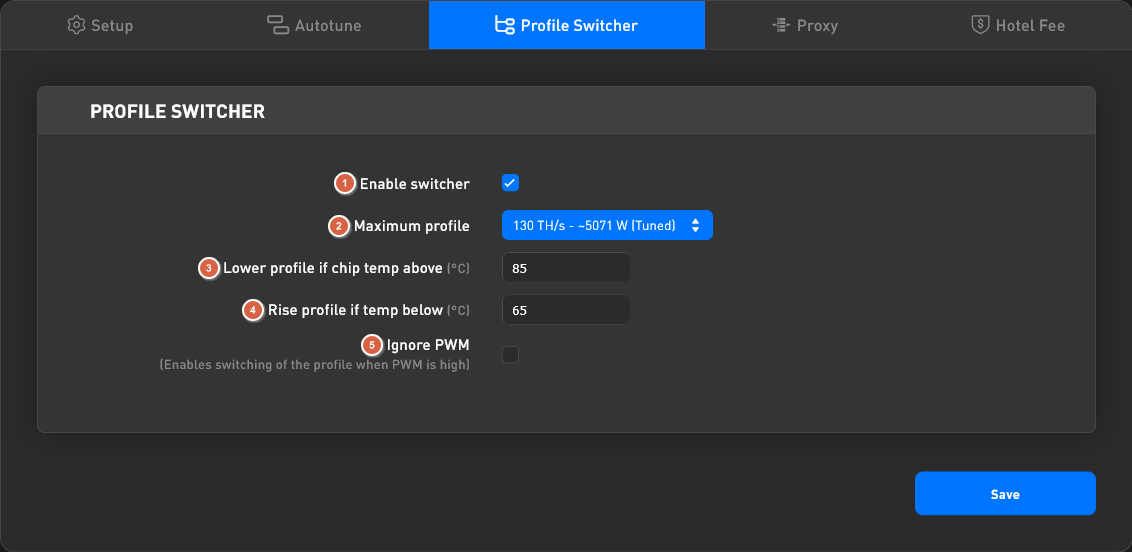
- Enable switcher — enables the Profile Switcher function.
- Maximum profile — the maximum profile to which switching is possible.
- Lower profile if chip temp above — lowers the profile if the chip temperature exceeds the specified value.
- Rise profile if temp below — raises the profile if the chip temperature is below the specified value.
- Ignore PWM — enabling this option allows raising the profile even if the fan speed is greater than 90% of the maximum. If the option is disabled, the profile will not be raised under such conditions.
Proxy Tab
This function allows using an intermediate proxy server through which mining traffic will be routed.
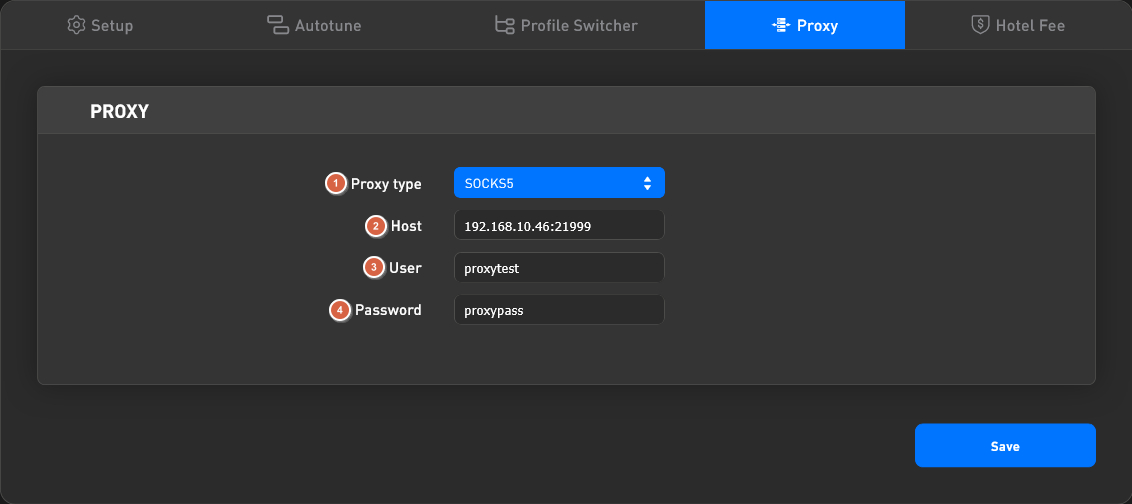
- Proxy type — selects the proxy server type.
- Host — proxy server address and port.
- User — username for authorization on the proxy server.
- Password — password for authorization on the proxy server.
Hotel Fee Tab
This function allows specifying a pool and percentage for additional deductions. When the function is enabled, the specified percentage of hashrate will be directed to the address specified in this tab.
Example: in the screenshot below, the function is enabled, pool connection details are set, and the deduction percentage is 25%. This means that the device's hashrate will be split between two pools as follows: 25% will go to the Hotel Fee pool, and 75% (100% - 25%) will go to the main pools specified in the Setup-Pools tab.
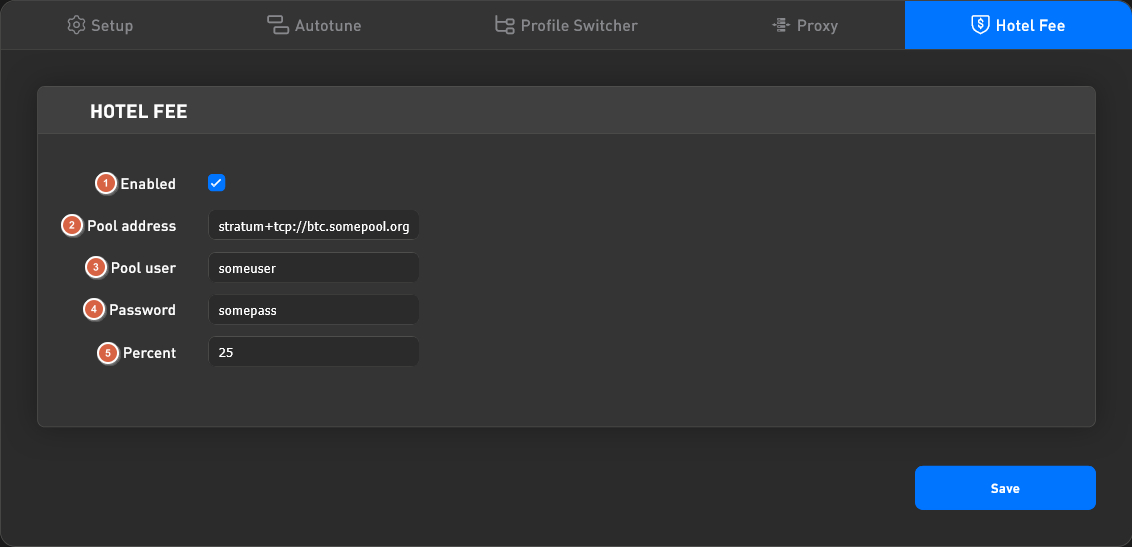
- Enabled — enables the function.
- Pool address — the pool address for deductions.
- Pool user — the worker name on this pool for deductions.
- Password — worker password (optional).
- Percent — the deduction percentage.